Choose the Right Tablet for Work, Study & Play
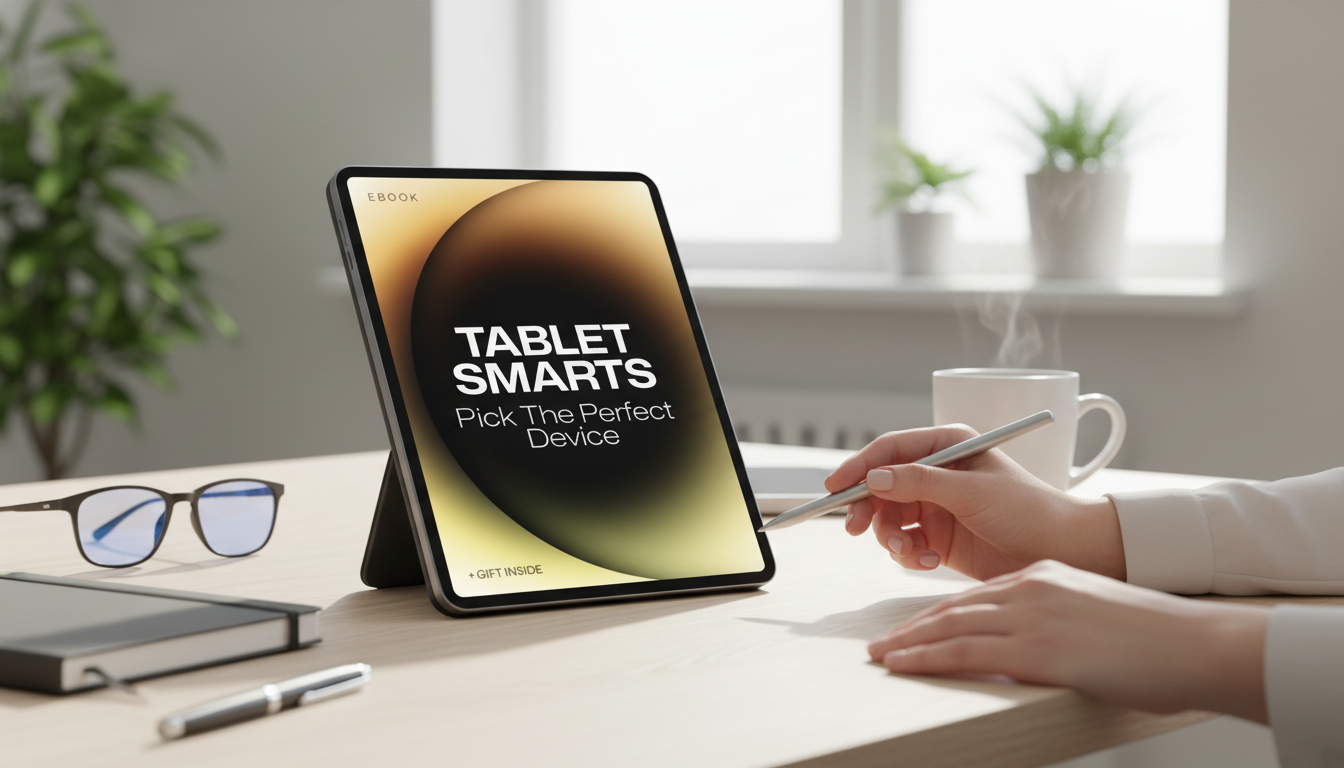
Tablet Smarts: Pick the Perfect Device for Work, Study, and Play
Choosing a tablet gets easier when the decision is tied to real tasks: how notes are taken, what apps are used, where work happens, and how long the device should last. This guide focuses on the specs and trade-offs that actually change day-to-day comfort—so the tablet you pick fits routines, budget, and the way you like to work.
Start with the job: what the tablet must do every week
Before comparing brands or screen tech, list the top things the tablet needs to handle consistently.
- Work: email, spreadsheets, video calls, remote desktops, document markup, presentations, and switching between multiple apps without lag.
- Study: stylus note-taking, reading and highlighting PDFs, research with many tabs, learning platforms, lecture recording, and distraction controls.
- Play: streaming, casual to demanding games, creative apps, social media, travel use, and family sharing.
- Role clarity: decide whether the tablet replaces a laptop, complements one, or is mainly for reading and entertainment.
Size and weight: comfort beats raw screen inches
Screen size isn’t just about how much fits on the display—it’s about how the device feels in your hands, on your lap, and in a bag.
- 8–9 inch: great for one-hand use, commuting, and long reading sessions; less comfortable for typing and split-screen work.
- 10–11 inch: a balanced “do most things well” range for mixed work, study, and play; better for typing and multitasking than smaller tablets.
- 12–13 inch: best for keyboard-heavy days and drawing; heavier for handheld reading and more noticeable for travel.
- Practical checks: bezel grip, portrait vs. landscape comfort, and how much bulk a protective case adds.
Display: crisp text, smooth scrolling, and accurate color
A tablet can be fast and still feel tiring if the screen isn’t suited for how you use it.
Performance and memory: match speed to the heaviest app
Quick spec targets by primary use
| Primary use | Screen size | RAM | Storage | Notes |
|---|---|---|---|---|
| Reading & streaming | 8–11 in | 4–6GB | 64–128GB | Prioritize weight, brightness, speakers, and battery |
| Study & note-taking | 10–12 in | 6–8GB | 128–256GB | Prioritize stylus support, palm rejection, PDF handling |
| Work & multitasking | 11–13 in | 8–12GB | 256GB+ | Prioritize keyboard/trackpad, external display support, video calls |
| Art & creation | 11–13 in | 8–16GB | 256GB+ | Prioritize color accuracy, pen latency, storage, app ecosystem |
| Gaming | 10–13 in | 8GB+ | 128–256GB | Prioritize GPU performance, cooling, refresh rate, controller support |
Battery and charging: plan for real days, not lab hours
- Real-world battery: manufacturer claims can be optimistic; look for independent tests covering video playback, browsing, and mixed use.
- Fast charging: reduces downtime; check charging wattage and whether the right charger is included.
- USB-C details: USB-C is the practical standard for charging and accessories, but data speed varies—important if you move large files. For deeper technical context, see resources from the USB Implementers Forum (USB‑IF).
Battery health also depends on how lithium-ion packs behave over time; if longevity matters, it helps to understand charging habits and heat. A clear overview is available at Battery University.
Accessories that change the experience: keyboard, stylus, and stands
Connectivity: Wi‑Fi vs cellular, plus ports and casting
- Wi‑Fi vs cellular: Wi‑Fi-only models work well for home and campus; cellular is valuable for travel, field work, and reliable messaging.
- Wi‑Fi generation: newer Wi‑Fi standards can improve performance in crowded networks; a plain-language overview is available from the Wi‑Fi Alliance.
- Bluetooth stability: important for keyboards, mice, headphones, and controllers—especially in busy dorms and offices.
- External display support: some tablets only mirror; others can extend a workspace with desktop-like multitasking.
- Ports and hubs: USB-C hub support for HDMI, Ethernet, SD readers, and external drives can decide whether the tablet feels seamless or fiddly.
Software and ecosystem: apps, updates, and cross-device flow
Durability and ownership: the long game
A simple decision path: narrow options in 10 minutes
Smart Buyer’s Guide: Tablet Smarts (ebook) for confident shopping
If you want a checklist-style approach that translates specs into real outcomes (smoother multitasking, better note-taking feel, fewer accessory surprises), the Tablet Smarts: Pick the Perfect Device ebook is built for quick comparisons and confident decisions.
For readers also focused on building stronger routines around work and learning, these in-stock guides pair well with a new device setup: Empower Your Inner Voice and Travel Solo With Confidence.
FAQ
What tablet size is best for note-taking and reading PDFs?
A 10–12 inch tablet is usually the sweet spot for full-page PDF viewing and comfortable split-screen notes. Prioritize solid stylus support, good palm rejection, and enough brightness for classroom lighting; 8–9 inch models are more portable but can feel cramped for textbooks.
How much storage does a tablet need for school or work?
128GB is a practical baseline for most students and professionals. Choose 256GB or more if you keep offline video, large PDF libraries, creative files, or multiple big games; cloud storage helps, but offline access still matters.
Is a keyboard case worth it, or should a laptop be used instead?
A keyboard case is worth it for emails, documents, and light spreadsheet work—especially if portability is the priority. For heavy multitasking, coding, or complex spreadsheets, a laptop (or a tablet with strong external display support and desktop-style multitasking) is often a better fit.












Leave a comment